 Budget
Pensions
Track retirement and pension accounts with contributions, withdrawals and growth projections. Fund contributions straight from a bank account, schedule them to post automatically, and see whether you're on track for a retirement target -- in today's money or future money.
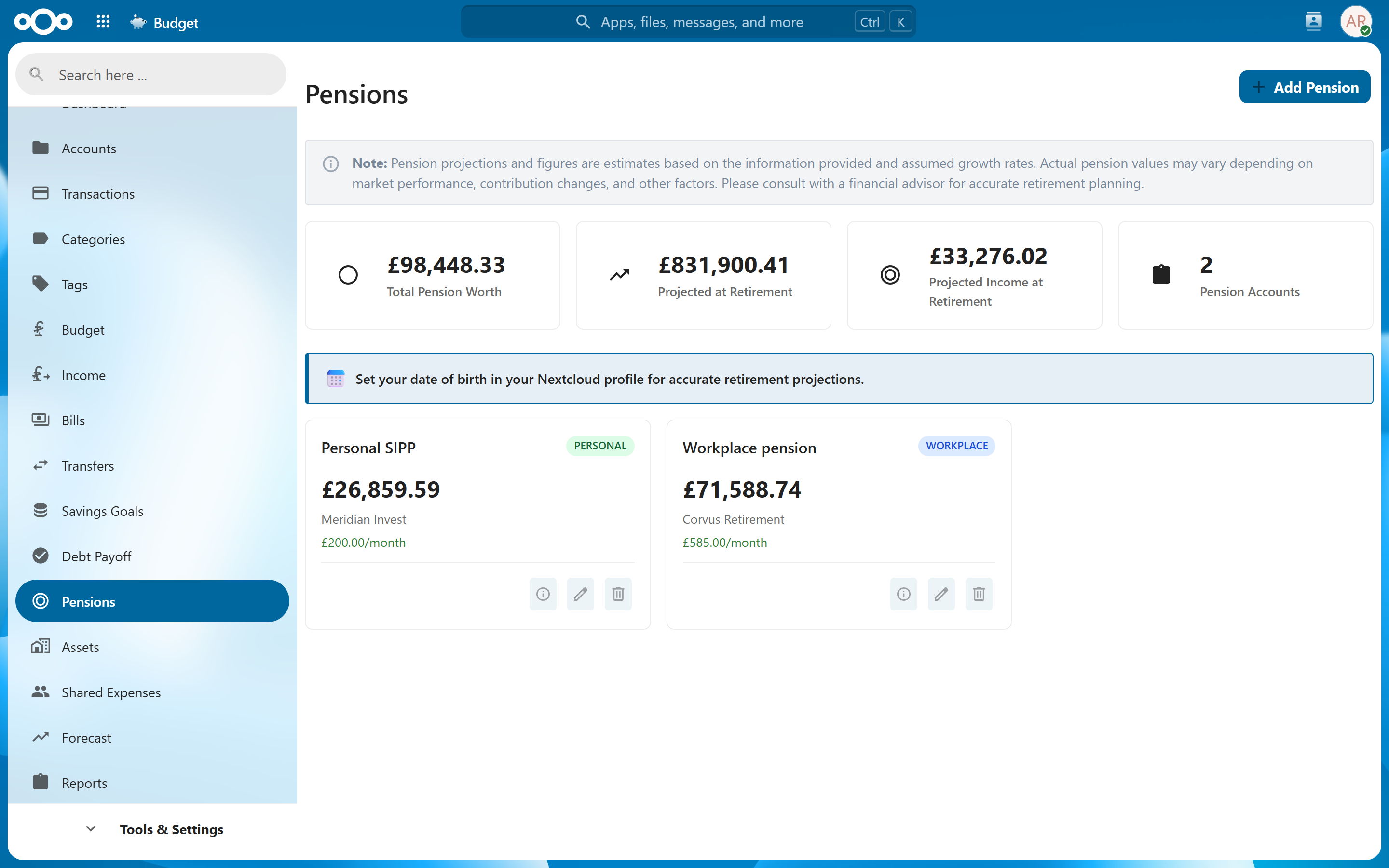
Overview#
The Pensions feature lets you track retirement accounts that receive contributions and grow over time. Unlike standard accounts where you record individual transactions, pension accounts focus on contributions, withdrawals and projected growth -- giving you a forward-looking view of your retirement savings.
Each pension account tracks its current value, contribution activity and projected growth. The app uses these to forecast your retirement savings and show your progress toward a target pot.
Adding a Pension Account#
To add a new pension account:
- Navigate to Pensions
- Click Add Pension
- Fill in the details:
| Field | Required | Description |
|---|---|---|
| Name | Yes | Descriptive name (e.g., "Company Workplace Pension", "SIPP") |
| Type | Yes | Workplace Pension, Personal Pension, SIPP, Defined Benefit or State Pension |
| Provider | No | Institution managing the account (e.g., "Aviva", "Vanguard") |
| Current Value | Yes | Current value of the pension pot |
| Currency | Yes | Currency the account is denominated in |
| Contribution Amount | No | Regular contribution amount |
| Contribution Frequency | No | How often contributions are made (monthly, quarterly, etc.) |
| Target Pot at Retirement | No | The pot size you're aiming for. Drives the progress indicator on the projection chart. Defaults to 500,000 if left blank |
The pension type determines what the app can project. Workplace, Personal and SIPP pensions are pot-based (defined-contribution) accounts, so they get full growth projections. Defined Benefit and State Pension pay a set income rather than holding a pot, so they're tracked but don't show a pot projection.
Tip: If your employer matches contributions, include both your contribution and the match in the contribution amount for a more accurate projection.
Note: For accurate retirement projections, set your date of birth in your Nextcloud profile (Settings → Personal info). The app uses it to work out how many years remain until retirement.
Recording Contributions#
Track contributions as they happen:
- Navigate to Pensions and select a pension account
- Click Log Contribution
- Enter the amount and date
- (Optional) Choose a Came from account -- the bank account the money came out of
- Click Save
If you pick a Came from account, the app creates the matching outflow on that bank account for you and links it to the contribution. That bank transaction carries a Pension badge and is automatically excluded from your spending and budgets, so funding your pension doesn't look like an expense. Delete either side and the app cleans up the other.
If you leave Came from account blank, the contribution is recorded on the pension only, with no effect on any bank account.
Note: Contributions are separate from value snapshots. A contribution records money you put in; a snapshot records the total pot value (which also reflects investment gains or losses). The pot's displayed value comes from your latest snapshot/current value, not from summing contributions.
Scheduled (Recurring) Contributions#
Set up contributions that recur on a schedule instead of logging each one by hand:
- Open a pension account
- In the Scheduled Contributions section, click Set up recurring
- Enter the amount and frequency (monthly, quarterly or yearly)
- (Optional) Choose a source account, the same way as a one-off contribution
- Choose whether it should post automatically when due
- Click Save
Scheduled contributions appear in the Scheduled Contributions list on the pension. When one is due:
- If auto-post is enabled, a background job posts it automatically (creating the linked bank transfer if a source account is set).
- You can also post any schedule immediately with Post now.
Recording Withdrawals#
Record money taken out of a pension (drawdown):
- Open a pension account
- Click Record Withdrawal
- Enter the amount and date
- (Optional) Choose a Paid into account -- the bank account that received the money
- Click Save
If you pick a Paid into account, the app adds the matching deposit to that account and links it, mirroring how contributions work. Withdrawals show in red in the pension's activity timeline.
Value Snapshots#
Record the actual current value of your pension periodically:
- Open a pension account
- Click Add Snapshot
- Enter the current total value and date
- Click Save
Snapshots capture the real pot value including investment gains or losses. Comparing snapshots against the projection shows whether your investments are outperforming or underperforming expectations.
Note: Check your pension provider's statement or online portal for the current value. Recording snapshots quarterly gives a good balance between accuracy and effort.
Activity Timeline#
Each pension's detail view shows:
- A balance chart built from your snapshots and contributions
- An activity timeline that merges contributions, withdrawals and value updates into one list, newest first
Every item in the timeline can be removed individually if you make a mistake. Items linked to a bank account (contributions/withdrawals recorded with a source account) clean up their linked bank transaction when removed.
Growth Projections#
Pot-based pensions (Workplace, Personal, SIPP) include an interactive projection chart:
- Historical values -- plotted from your snapshots and contributions
- Projection curve -- expected future value based on your contribution rate and an assumed annual return, compounded to retirement
- Target pot -- your Target Pot at Retirement is shown alongside a progress indicator ("you're X% of the way there")
- Today's money toggle -- turn on Today's money to view the projection adjusted for inflation, so future values are shown in what they'd be worth in today's terms rather than the larger nominal figure
Tip: Use a conservative return rate for planning. Actual returns vary year to year, but conservative projections help avoid overconfidence. The Today's money view is the more honest one for "will this be enough?" questions, because it strips out the illusion of growth that's really just inflation.
Combined Forecast#
The combined forecast view shows all pension accounts together:
- Navigate to Pensions
- Click Combined Forecast
- View the combined projection chart across all pension accounts
This gives you a single view of your total retirement savings trajectory, stacked so you can see both the total and each account's contribution to it -- useful for answering "Am I on track for retirement?" across all your pension sources.
On the Dashboard#
- Pension Worth tile -- shows your combined pension values at a glance
- Pension Projection card -- an optional dashboard card with a projection mini-chart and progress toward your target. Enable it from the dashboard's tile customisation (it's off by default)
Related Features#
- Dashboard -- Pension Worth tile and the optional Pension Projection card
- Transactions -- bank transactions that fund a pension show a Pension badge and are excluded from spending
- Forecast -- the overall financial forecast includes pension projections
- Accounts -- standard accounts for liquid funds are tracked separately
Settings#
Pensions have no dedicated entry on the Settings page. The key knobs live with the data itself:
- Target Pot at Retirement is set per pension (in the Add/Edit Pension dialog).
- The Today's money view applies an inflation assumption to the projection; toggle it on the projection chart.
- Retirement projections use the date of birth in your Nextcloud profile -- set it there for accurate results.