 Budget
Savings Goals
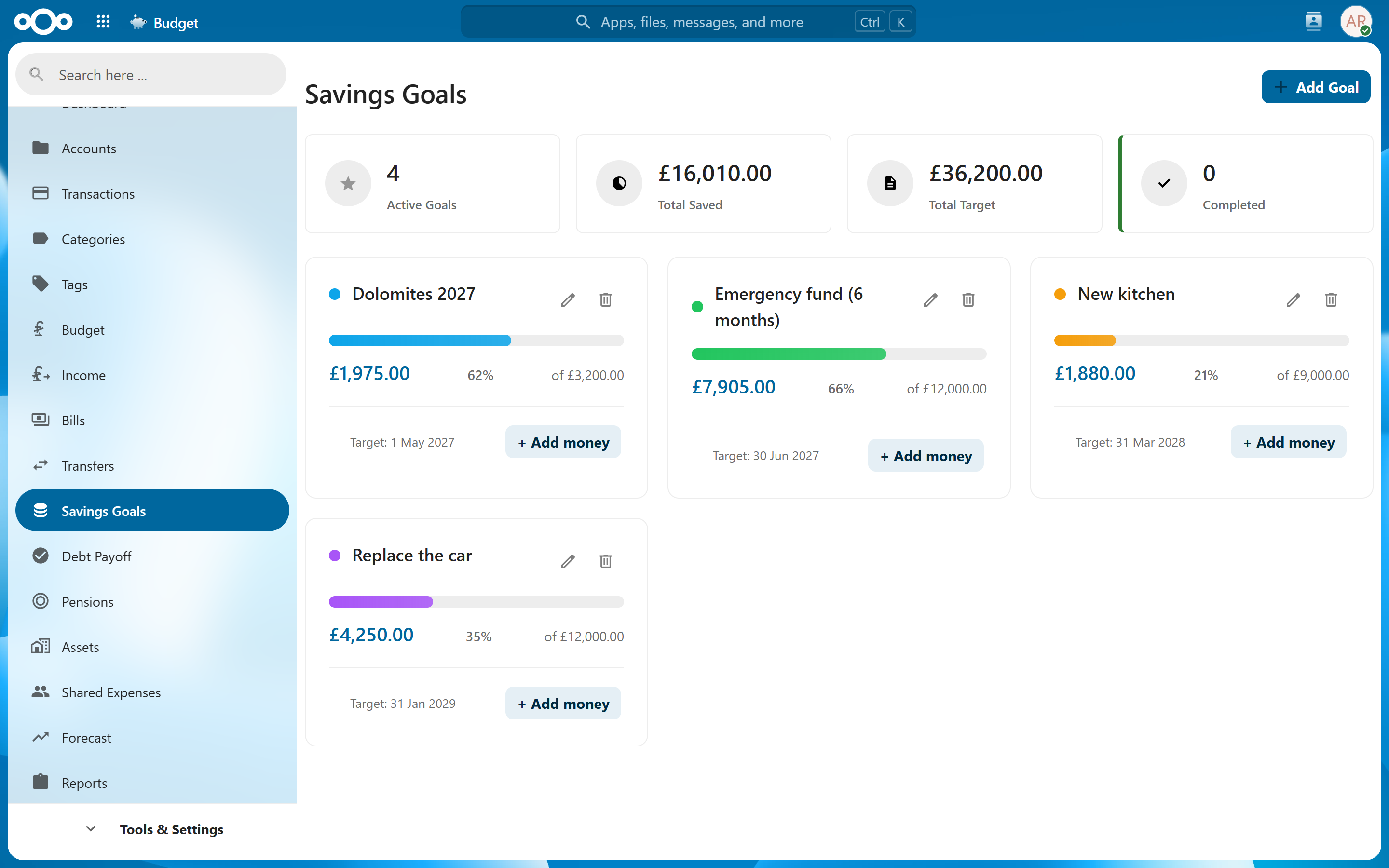
Savings Goals let you set financial targets — an emergency fund, a vacation, a down payment — and track your progress toward reaching them. Link a goal to an account or to tags for automatic progress tracking.
Overview#
A savings goal represents a specific financial target you are working toward. The app tracks how much you have saved relative to your target, shows your progress visually, and forecasts when you will reach the goal based on your current saving rate.
Creating a Goal#
Navigate to Savings Goals > Add Goal to create a new goal.
| Field | Description |
|---|---|
| Name | A descriptive name for the goal (e.g., "Emergency Fund", "Trip to Japan", "New Laptop"). |
| Target Amount | The total amount you want to save. |
| Target Date | The date by which you want to reach the goal. Optional — leave blank if there is no deadline. |
| Linked Account | The account where savings for this goal are held. The account balance (or a portion of it) counts toward progress. |
| Initial Amount | An optional starting amount if you have already saved toward this goal before creating it in the app. |
Tip: If you keep savings for multiple goals in a single account, consider using tag-linked goals (below) instead of linking the full account balance to each goal.
Progress Tracking#
Each savings goal displays:
| Element | Description |
|---|---|
| Progress Bar | A visual bar showing how close you are to the target amount. |
| Percentage Complete | The current saved amount as a percentage of the target. |
| Amount Saved | The absolute amount saved so far. |
| Amount Remaining | How much more you need to save. |
| Projected Achievement Date | When you will reach the goal at your current saving rate. See Achievement Forecasting. |
Progress updates automatically as your linked account balance changes or tagged transactions are recorded.
Tag-Linked Goals#
For more precise tracking, you can link a savings goal to one or more tags. When linked to tags, the saved amount is calculated automatically from tagged transactions rather than from the full account balance.
How It Works#
- Create tags that represent savings contributions (e.g., a tag called "Vacation Fund" or "Emergency Savings").
- When creating or editing a goal, link it to those tags.
- Any transaction tagged with the linked tags counts toward the goal's progress.
Use Cases#
- Multiple goals in one account — You have a single savings account but want to track progress toward separate goals. Tag deposits with the appropriate goal tag.
- Contributions from multiple accounts — Tag savings deposits regardless of which account they come from, and the goal tracks the total across all accounts.
- Excluding withdrawals — Only tagged inflows count, so temporary withdrawals from the account do not affect progress unless they are also tagged.
Note: When a goal uses tag-linked tracking, the linked account balance is not used for progress calculation. The saved amount comes exclusively from tagged transactions.
Achievement Forecasting#
The app estimates when you will reach your goal based on your recent saving rate.
How It Calculates#
- Looks at your saving contributions over the past 3 months (or since the goal was created, whichever is shorter).
- Calculates your average monthly contribution.
- Projects forward to determine the estimated achievement date.
Indicators#
| Status | Meaning |
|---|---|
| On Track | Your current rate will reach the goal by or before the target date. |
| Behind | At your current rate, you will miss the target date. The app shows how much you need to increase contributions. |
| Ahead | You are saving faster than needed and will reach the goal early. |
| No Target Date | Only the estimated achievement date is shown, with no on-track/behind indicator. |
Tip: If you are behind on a goal, the app shows the monthly contribution needed to get back on track. Use this to adjust your budget.
Sharing Goals#
A savings goal can be shared with another Nextcloud user via Settings > Sharing (granular sharing). Shared goals show a Shared badge for the recipient.
| Permission | What the recipient can do |
|---|---|
| Read | View the goal, its progress, and forecast. |
| Write | Additionally edit the goal and add money toward it. |
Only the goal's owner can delete a shared goal. Progress for tag-linked shared goals is calculated against the owner's transactions, so both people see the same numbers.
Related Features#
- Tags — Tag-linked goals use the tag system for automatic progress calculation.
- Dashboard — The Savings Goals tile shows an overview of all active goals and their progress.
- Accounts — Goals can be linked to specific accounts for balance-based tracking.
- Sharing — How granular sharing works across the app.
Settings#
Savings Goals do not have dedicated settings. Goals are managed directly from the Savings Goals view.