 Budget
Accounts
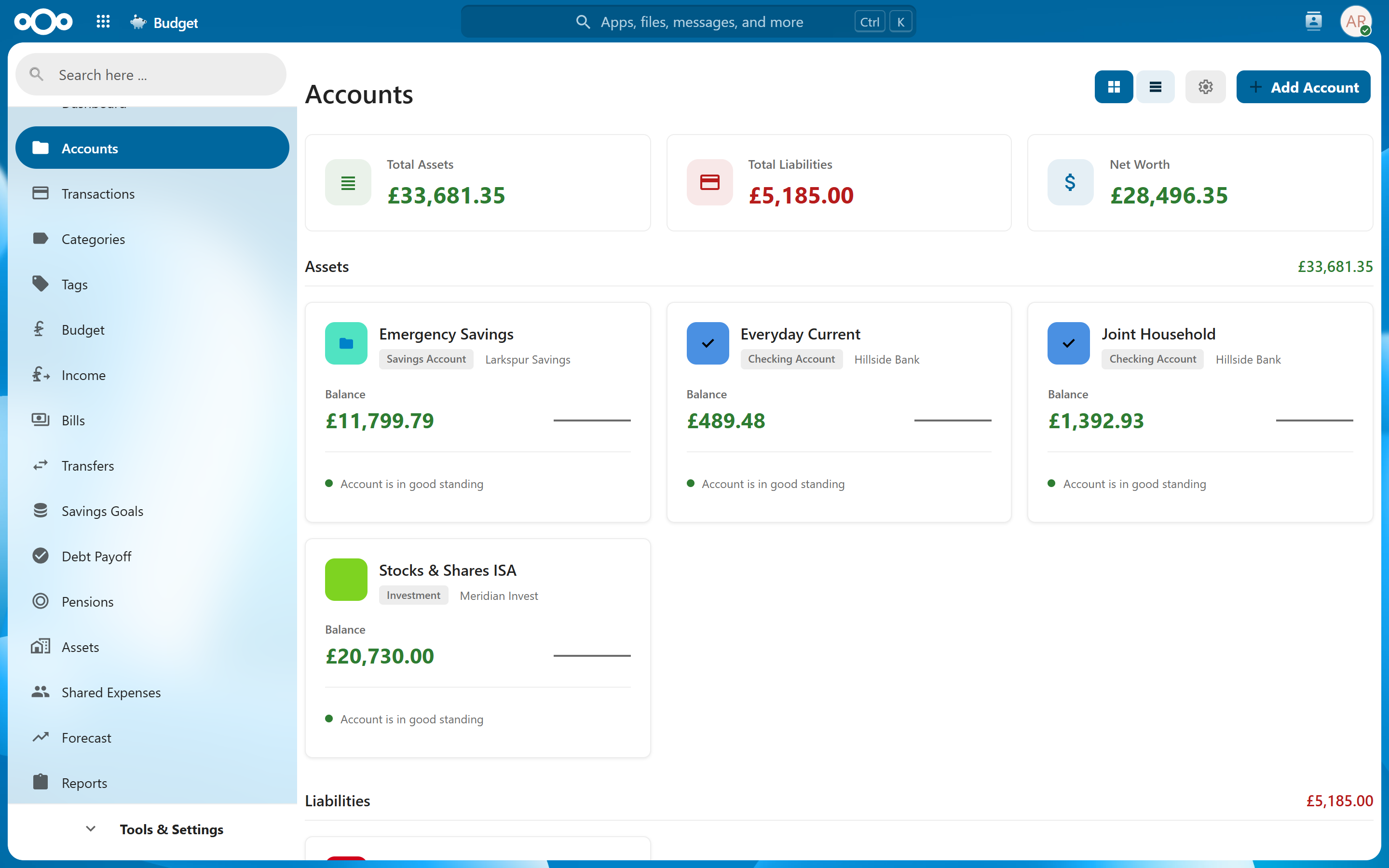
Accounts represent your real-world bank accounts, credit cards, loans, and other financial accounts. Each account holds its own set of transactions and tracks its balance independently, giving you a complete picture of your finances across all institutions.
Account Types#
When creating an account, you select a type that determines how the app interprets balances and which optional fields are shown.
| Type | Description |
|---|---|
| Checking | Standard current/checking accounts used for everyday spending and income. Balance is expected to be positive. |
| Savings | Savings or deposit accounts. Treated the same as checking but visually distinguished on the dashboard. |
| Credit Card | Revolving credit accounts. Balances are displayed as amounts owed. Supports credit limit tracking and utilization warnings (alerts at 70% and 90% utilization). |
| Investment | Brokerage, retirement, or other investment accounts for tracking portfolio value. |
| Cash | Physical cash or petty cash tracking. Useful when you want to record cash spending without tying it to a bank. |
| Loan | Personal loans, auto loans, or other debts. Balances represent the amount owed. Supports interest rate and minimum payment fields for debt payoff planning. |
| Mortgage | Home loans and property-secured debt. Treated the same as Loan but visually distinguished. Supports interest rate and minimum payment fields. |
| Line of Credit | Revolving credit facilities such as HELOCs or overdraft lines. Similar to Credit Card but intended for non-card credit accounts. Supports credit limit, interest rate, and minimum payment fields. |
| Cryptocurrency | Wallets or exchange accounts for digital currencies. Supports a wallet address field and works with crypto currencies (BTC, ETH, etc.). |
Tip: The account type mainly affects how balances are displayed and which optional fields appear on the account form. You can always change the type later by editing the account.
Liability Balance Model#
Credit Card, Loan, Mortgage, and Line of Credit are all liability account types. They share a common balance model that differs from asset accounts like Checking or Savings.
How Liability Balances Work#
Liability balances are stored as negative numbers internally, but the app displays them as positive amounts with an "Owed" label so they are easy to read at a glance.
- A payment (credit transaction) decreases the amount you owe.
- A charge or withdrawal (debit transaction) increases the amount you owe.
You do not enter that minus sign yourself — the form asks for the amount owed as a positive number and applies the sign for you.
For example, if you create a Loan account with £10,000 owed, the app stores the balance as −10,000 but displays it as £10,000 Owed. After making a £500 payment the display updates to £9,500 Owed.
Credit cards and lines of credit can also record a Statement due day — the day of the month the card's payment falls due, shown on the account's page. The recurring payment itself can be automated too: a Set up payment button on the card's account page creates a transfer that pays the statement balance each month, pre-filled with the statement due day. See Paying a Credit Card Statement.
Entering What You Owe#
On a liability account the balance field is labelled Amount owed. Enter what you owe as a plain positive number — the app records it as a debt for you. You never need to type a minus sign, and you should not: see If the account is in credit for the one case where a positive balance means something different.
This applies when you create the account (the field is called Starting Balance) and when you edit it later (Amount owed). As you type, the read-only current balance below updates to show the result, so you can see it is being recorded as a debt before you save.
If you change an account's Type between a debt type and an asset type, the app converts the figure for you and shows the new current balance before you save.
If the Account is in Credit#
Occasionally a liability is in credit rather than in debt — you have overpaid a credit card, say, and the issuer owes you. Tick This account is in credit — you have overpaid it below the amount, and the balance is recorded as money owed to you instead of money you owe.
An account in credit counts towards your assets, not your liabilities, and is not listed in the debt payoff planner as something to pay off.
Leave the box unticked for any normal debt. It is only there for a genuine overpayment.
If your net worth looks too high: before this was asked explicitly, a positive balance typed into a debt account was taken at face value, so a statement balance entered without a minus sign was read as "the lender owes you this" — adding the debt to your net worth instead of subtracting it. Settings › Repair Data finds and fixes this. Run Scan for Issues and look for Debts Recorded as Being in Credit; it lists each affected account with what it reads now and what it will read afterwards. Untick any account you really have overpaid — those are recorded as genuine credits and left out of future scans.
Net Worth#
The dashboard's net worth calculation subtracts liability balances from asset balances. If you have £20,000 across checking and savings accounts and £8,000 owed on a loan, your net worth shows as £12,000.
An account in credit counts the other way, as an asset: £20,000 in savings and a credit card overpaid by £200 gives £20,200.
Grid and List Views#
The accounts page offers two layouts, toggled with the view switcher in the accounts header.
| View | Description |
|---|---|
| Grid (default) | Tile cards showing account name, balance, sparkline chart, and health status indicators. |
| List | Compact table with columns for name, type, institution, and balance. Useful when you have many accounts. |
Your chosen view is saved automatically and restored the next time you visit the accounts page. In either view, click any card or row to open the account detail view.
Choosing What to Show#
The gear button next to the view switcher opens the display settings for the accounts page. These apply to both layouts (a couple of options only make sense on tiles) and are saved in your browser.
Show attributes — tick the details you want on each tile/row:
| Attribute | Default | Notes |
|---|---|---|
| Name | Always on | Can be reordered but not hidden. |
| Account type | On | Type badge on a tile, type column in the list. |
| Institution | On | The bank or provider. |
| Account number | Off | Masked (last four digits only). |
| Last reconciled | Off | Shows Never reconciled if the account has never been reconciled. |
| Balance | Always on | Can be reordered but not hidden. |
| Converted balance | On | The balance in your primary currency, for accounts held in another currency. Sits with the balance. |
| Balance trend | On | The 7-day sparkline. Tiles only. |
| Status | On | The health dot and its label. Tiles only. |
Hiding an attribute in the list view also removes its column, so the remaining columns take up the space.
Reordering columns — the attributes above the divider are the columns of the list view, and can be dragged into whatever order you want (or moved with Alt+↑/Alt+↓ while a row has keyboard focus). Name and Balance take part in the ordering even though they can't be hidden. Tiles use the same order for the details under the account name, so the two layouts stay consistent. The account icon stays first and the edit/delete buttons stay last. On narrow screens the list drops to name and balance regardless, keeping whichever order you chose.
Order accounts by — sort by name, balance, account type, institution, last reconciled, or date added, ascending or descending. The default is name, ascending. Assets and liabilities are still grouped into their own sections; the ordering applies within each. Accounts missing the attribute you sort by (no institution, never reconciled) go to the bottom of their section.
Reset to defaults restores every option above.
Creating an Account#
Navigate to Accounts > Add Account to create a new account.
Form Layout#
The account form lays its fields out in three columns, so everything is visible at once without scrolling:
| Column | Contains |
|---|---|
| Details | Name, type, opening balance, current balance, currency and institution. |
| Banking | Account holder name, account number, opening date, and the identifiers that apply to your account type (routing number, sort code, IBAN, SWIFT/BIC, or wallet address). |
| Rates & limits | Interest rate, compounding frequency, credit limit, overdraft limit, minimum payment and interest tracking. Hidden entirely when the account type has no rates or limits to set — a Cash account, for example, has none. |
| Advanced | Sits below Rates & limits and holds the Exclude from reports, dashboard & forecast option and, when editing an existing account, This account is closed. |
On narrower windows the columns reflow to two, then to a single stacked column on a phone. When you edit an existing account the current balance is shown as a read-only figure, since it is calculated from the account's transactions rather than typed in — change the Opening Balance instead — labelled Amount owed on a debt account — and the current balance updates to match. The field is only saved when you actually change it, so renaming an account or ticking a checkbox leaves the balance exactly as it was.
Required Fields#
| Field | Description |
|---|---|
| Name | A descriptive name for the account (e.g., "Chase Checking", "Amex Gold"). |
| Type | One of the account types listed above. |
| Currency | The currency this account operates in. The app supports 45+ currencies including major fiat currencies (USD, EUR, GBP, JPY, CAD, AUD, CHF, etc.) and cryptocurrencies (BTC, ETH, XRP, LTC, etc.). |
Optional Fields#
| Field | Description |
|---|---|
| Opening Balance | The starting balance when you begin tracking this account. On liability accounts (Credit Card, Loan, Mortgage, Line of Credit) the field is labelled Amount owed: enter what you owe as a positive number and tick This account is in credit only if you have overpaid it — see Liability Balance Model. A live preview of the resulting current balance is shown as you edit this field. |
| Credit Limit | Available for credit card accounts. Used to calculate credit utilization percentage. |
| Interest Rate | Available for liability accounts. Used in debt payoff calculations. |
| Minimum Payment | Available for liability accounts. Used in debt payoff planning. |
| Overdraft Limit | The overdraft threshold for the account. The app warns you when your balance drops below this limit. |
| Exclude from reports, dashboard & forecast | When ticked, the account is kept out of every "all accounts" total — reports, the dashboard, forecast, net worth and category budgets. See Excluding an Account from Aggregations. |
| This account is closed | Shown when editing. Keeps the account's history and its place in every total, but removes it from every picker for new activity. The balance must be zero first. See Closing an Account. |
Note: The currency is set per account, so you can track accounts in different currencies. Multi-currency totals on the dashboard use exchange rates to convert to your default currency. See Exchange Rates for details.
Excluding an Account from Aggregations#
Sometimes you want to track an account in Budget without letting it affect your overall financial picture — for example an account you manage on someone else's behalf, or one that isn't really part of your own net worth. Tick Exclude from reports, dashboard & forecast in the account's edit dialog to do exactly that.
When an account is excluded:
- Its transactions and balance are left out of all reports (spending, income, cash flow, trends, tags), the dashboard (totals, charts and summary tiles), the forecast, net worth, total balance, and category budgets — everywhere "All accounts" is aggregated.
- The account still appears in your accounts list (marked with an Excluded badge) and on its own detail page, and its transactions still show in the transactions list, so you can keep using and reconciling it normally.
- If you explicitly select the account in a report or forecast, that view still works on its own — the exclusion only applies to the combined "all accounts" figures.
You can toggle this off again at any time; the account immediately rejoins all totals (everything is derived live, nothing is cached).
Closing an Account#
An account you no longer hold — an old current account, a card you cancelled — can be marked closed from the Advanced section of its edit dialog. Tick This account is closed and save.
A closed account keeps everything. Every transaction stays, and its history still counts in reports, the dashboard and net worth exactly as before. What changes is where it is offered: a closed account no longer appears in any picker for new activity — the transaction and quick-add forms, transfers, bills, recurring income, imports, import rules, bank-sync mappings, savings goals and pension contributions. Pickers that filter history, such as the transactions filter and the account selectors on reports and charts, keep listing it, so its past is always reachable.
On the accounts page, closed accounts move into a collapsed Closed accounts section at the bottom, and each carries a Closed badge on its card and on its own page, where the reconcile action is also hidden. Opening an old transaction that sits in a closed account still works: the account stays selected, labelled "(closed)".
What closing requires#
Closing is refused, with the reason shown in the form, until all three hold:
- The balance is zero. If money is left in the account, record the closing withdrawal (or the final payment on a card), or adjust the opening balance so the account reads zero. The form shows the current balance under the checkbox as a reminder.
- Nothing is dated after today. Delete or move any future-dated transactions first.
- Nothing is still scheduled to pay into or out of it. An active bill or transfer that uses the account, recurring income paid into it, a pension contribution drawn from it, an enabled bank-sync mapping, or an import rule that routes transactions into it all block the close. The message names each one so you can reassign or deactivate it and try again.
These rules are what let the app treat a closed account as finished: nothing new will land in it. Closing is independent of Exclude from reports, dashboard & forecast — a closed account with that option unticked keeps counting in every total, which is harmless because its balance is zero.
Editing the amount of an old transaction in a closed account still changes its balance. If that leaves the account away from zero, reopen it, correct the figures, and close it again.
Reopening#
Untick This account is closed and save. There are no conditions on reopening; the account returns to every picker immediately.
Account Detail View#
Click any account card to open the account detail view, which shows:
Current Balance vs. Projected Balance#
- Current Balance is the sum of all cleared (non-scheduled) transactions plus the opening balance. This reflects what your actual bank balance should be.
- Projected Balance includes scheduled (future-dated) transactions in addition to cleared ones. This tells you what your balance will be once upcoming transactions clear.
The projected balance is shown alongside the current balance when they differ, giving you visibility into expected future cash flow.
Balance History Chart#
The detail view includes a balance history chart that plots your account balance over time. This helps you spot trends, identify spending patterns, and see how your balance has changed historically.
Recent Transactions#
The detail view shows the most recent transactions for the account with quick access to add new transactions or navigate to the full Transactions view filtered to this account.
Account Information#
Each account has optional banking detail fields for your reference. These fields are all encrypted at rest and are never shared or transmitted.
| Field | Description |
|---|---|
| Account Number | Your bank account number. |
| Routing Number | US bank routing/ABA number. Shown for checking and savings accounts. |
| Sort Code | UK bank sort code. Shown based on account type and currency context. |
| IBAN | International Bank Account Number. Common for European and international accounts. |
| SWIFT/BIC | SWIFT or BIC code for international wire transfers. |
| Wallet Address | Cryptocurrency wallet address. Shown only for cryptocurrency accounts. |
Tip: These fields are purely for your own reference -- the app does not connect to any bank. They are stored with encryption so you can keep all your account details in one place without security concerns.
The account form dynamically shows and hides these fields based on the account type you select. For example, selecting Checking shows routing number and IBAN fields, while selecting Cryptocurrency shows the wallet address field instead.
How Balances Are Calculated#
An account's current balance is always derived from its ledger:
current balance = opening balance + net of all non-scheduled transactions
The opening balance represents what the account held before the first transaction you track in the app. It is set when you create the account and can be edited later — useful when you start tracking mid-life of a real account, or to true-up after reconciling.
Because the balance is recomputed from your transactions on every change, it can never drift out of step with the ledger: editing, moving, or deleting a transaction always leaves the balance exactly consistent with what the transaction list shows.
Note: Scheduled (future-dated) transactions don't count toward the current balance — they appear in the projected balance instead. See Transaction Status.
Reconciling Accounts#
Reconciliation verifies that your tracked balance matches your actual bank statement. This helps catch missing or incorrect transactions.
How to Reconcile#
- Open the account detail view and click Reconcile Account, or navigate to Transactions and click the Reconcile button.
- Select the account to reconcile (pre-selected if you started from the account detail view).
- Enter the statement balance from your bank statement and the statement date.
- The reconciliation panel shows the difference between your tracked balance and the statement balance.
- Review your transactions and mark them as reconciled by checking them off.
- If there is a remaining difference, the app offers to create an adjustment transaction to bring your balance in line with the statement.
The adjustment transaction is created with the description "Reconciliation Adjustment" and a note recording the target statement balance, so you can identify it later.
Tip: Reconcile regularly -- monthly when you receive your bank statement is a good cadence. This catches data entry errors and missing transactions early.
Deleting an Account#
To delete an account, open the account detail view and choose the delete option.
If the account still has transactions, the app tells you how many and asks whether to delete them along with the account. Confirm to remove both in one step -- useful when an import went wrong and you want to start over. Decline, and nothing is deleted; you can then clean up the transactions yourself from the Transactions page (filter by the account, select all, and use Delete Selected).
Deleting an account's transactions also unlinks any transfers that pointed at them. The counterpart transaction in the other account is kept -- it simply stops being marked as a transfer.
Deleting several at once#
Every account on the Accounts page carries a tick box, in both the tile and the list layouts. Tick the ones you want gone and a toolbar appears above the list with the number selected and a Delete button. Closed accounts can be selected the same way.
Bulk delete asks in two stages, so accounts with history in them are never removed by a click meant for an empty one:
- The first confirmation deletes only the accounts that are already empty.
- Anything still holding transactions is kept back, and a second dialog names those accounts and totals their transactions before touching anything in them. Decline and they are left exactly as they were -- the empty ones are still deleted.
This is the quickest way out of an import that went in with the wrong column mapped to Account, which can leave dozens of accounts behind.
Warning: Deleting an account permanently removes the account and all of its transactions. This action cannot be undone. If you want to keep historical data, consider archiving the account by renaming it (e.g., "Old Checking - Closed") rather than deleting it.
Related Features#
- Transactions -- View, add, and manage transactions within your accounts
- Transfers -- Move money between your accounts with linked transfer transactions
- Importing Bank Statements -- Import transactions from CSV, OFX, or QIF files into an account
- Dashboard -- See balances and health indicators for all your accounts at a glance
- Exchange Rates -- Configure exchange rates for multi-currency account totals
Settings#
- Default currency -- Sets the default currency for new accounts and the base currency for dashboard totals. Change this in Settings > General.