 Budget
Budget
Set spending limits for each category, track your progress throughout the period, and get visual feedback when you're approaching or exceeding your targets.
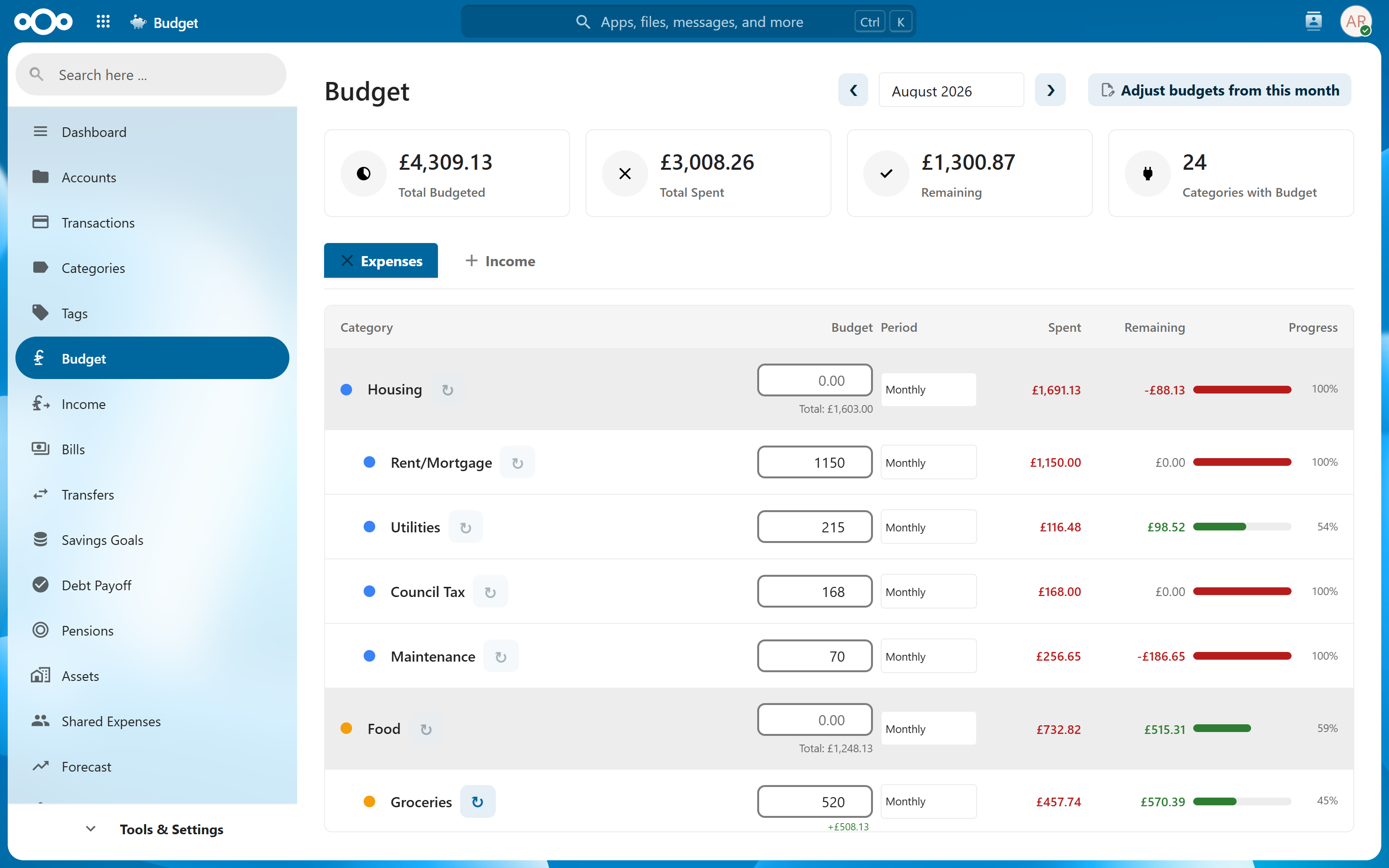
Overview#
The Budget feature lets you assign spending (or income) targets to your categories and monitor how actual transactions compare against those targets. Budgets support multiple time periods, per-month adjustments, and automatic parent-category aggregation so you always have a clear picture of where your money is going.
Setting a Budget#
- Navigate to Budget > Expenses (or Budget > Income)
- Find the category you want to budget
- Enter the amount directly in the inline input next to the category name
- The budget is saved automatically
Tip: You can set budgets on both parent and child categories. Parent categories will aggregate their children's values automatically.
Budget Periods#
Each category can have its own budget period:
| Period | Description |
|---|---|
| Weekly | Resets every week |
| Monthly | Resets on your configured start day each month |
| Quarterly | Resets every three months |
| Yearly | Resets annually |
When you switch a category's period, the amount is automatically pro-rated. For example, changing a monthly budget of £100 to yearly will auto-convert it to £1,200.
Note: The budget start day is configurable in Settings. If you set it to the 15th, your monthly budget period runs from the 15th to the 14th of the next month.
Each period is listed under the month its 15th falls in. With a start day of the 10th, September runs from 10 September to 9 October. With a start day of the 28th, September runs from 28 August to 27 September. This page opens on the period running today, which can be last or next calendar month: with a start day of the 10th it opens on August on 5 September. The dashboard and budget alerts name the current period the same way, so all of them use the same month's budgets.
Expense vs Income Tabs#
Toggle between expense and income budgets using the tabs at the top of the Budget page.
Expense budgets work as spending limits:
- Under budget = good (green)
- Over budget = concerning (red)
Income budgets work as earning targets:
- Exceeding the target = good (green)
- Under the target = concerning (red/orange)
Per-Month Budget Adjustments#
Sometimes your spending changes — a holiday month, a one-off expense, or a permanent lifestyle change. Per-month adjustments let you change budget values from a specific month onwards without affecting historical data.
- Click the Adjust budgets from this month button
- A confirmation dialog explains that current values will be saved as a new baseline from this month onwards
- Modify the budget amounts as needed
- Previous months retain their original values
Note: When viewing an adjusted month, a notice appears indicating that custom values are in effect.
To revert an adjustment, remove it from the same interface. An undo notification appears for 8 seconds after making an adjustment, allowing you to reverse it immediately.
Warning: Removing an adjustment reverts all categories to the values from the previous baseline. Make sure this is what you intend.
Automatic Budgets from Recurring Items#
A category with no manually-set budget automatically uses its committed recurring amounts as the budget limit: the sum of the category's active recurring bills and recurring income, normalized to the category's budget period. Split-template bills contribute to each split's category.
Auto-derived budgets are shown as a placeholder value with a small auto marker so you can tell them apart from limits you typed in. They feed the spent/remaining/progress indicators, parent-category totals, and the summary cards just like manual budgets.
Typing any value in the budget field always overrides the automatic figure — use this to add variable spending on top of the fixed recurring amounts. Clearing the field returns the category to automatic mode.
Tip: This means the "fixed" part of your budget maintains itself: assign your rent, subscriptions, and salary to categories via bills and recurring income, and only hand-enter budgets for variable categories like groceries.
Auto-derived budgets raise alerts in the same way manual ones do. If you would rather the dashboard's Budget Alerts tile stayed on the budgets you set yourself, you can tell it so in its settings.
Parent Category Aggregation#
Parent categories automatically display the sum of:
- Their own directly-set budget (if any)
- All children's budgets
A "Total" hint appears below the input to indicate the aggregated value. The "Spent" column also aggregates spending from all child categories.
Note: Spent is net: money that comes back into a category — a refund, a return, a reimbursement — is subtracted from it. A £216.90 bill with £158.61 credited back counts as £58.29 spent. Income categories work the same way in reverse, measured by what came in less anything paid back out.
Note: Money spent through a split transaction counts toward the budget of each part’s category. A £60 supermarket shop split £45 Groceries / £15 Household adds £45 to the Groceries budget and £15 to the Household one — a split carries no category of its own, so none of it goes unbudgeted.
This means you can budget at whatever level of detail suits you — set individual amounts on children, or a single lump sum on the parent.
Leaving a Category Out of Budgeting#
Not everything you track is worth budgeting against. Tick Exclude from budgeting when creating or editing a category (see Categories) and it disappears from:
- the Budget page (Expenses and Income tabs)
- the summary cards and any parent-category total
- budget alerts and the dashboard budget tiles
- the budget vs. actual report
- envelope rollover -- an excluded category carries nothing forward
Everything else is untouched: its transactions still count in reports, the dashboard, insights and every total. This is the difference between the two checkboxes -- Exclude from reports removes a category from all spending figures, while Exclude from budgeting removes it only from the budget surfaces.
Excluding a parent also excludes its subcategories, so a whole branch can be taken out of budgeting in one click.
Tip: Reach for this on categories that swing wildly month to month -- gifts, medical bills, home repairs. You keep seeing the spending in reports without a red "over budget" bar on a figure you could never have predicted.
Tip: For a job with one budget over several months, such as a renovation, use a project instead. Creating one can tick this flag on its category for you.
Summary Cards#
At the top of the Budget page, four summary cards provide an at-a-glance overview:
- Total Budgeted — sum of all category budgets for the current period
- Total Spent — sum of all spending against budgeted categories
- Remaining — difference between budgeted and spent
- Categories with Budget — how many categories have a budget assigned
Progress Indicators#
Each category displays a color-coded progress bar showing spending relative to the budget:
| Usage | Color | Meaning |
|---|---|---|
| 0–60% | Green | Well within budget |
| 60–80% | Yellow | Approaching limit |
| 80–100% | Orange | Nearing limit |
| >100% | Red | Over budget |
For income budgets, the colors are inverted — green indicates you've exceeded your income target, which is a positive outcome.
Related Features#
- Categories — budget targets are assigned per category
- Dashboard — budget tiles show at-a-glance progress on the home screen
- Reports — the budget report compares budgeted vs actual across periods
Settings#
- Budget period — default period for new budgets (weekly, monthly, quarterly, yearly)
- Budget start day — which day of the month the budget period begins