 Budget
Shared Expenses
Split costs with housemates, partners or friends and keep track of who owes whom. Record a split against a transaction, then settle up when the money changes hands.
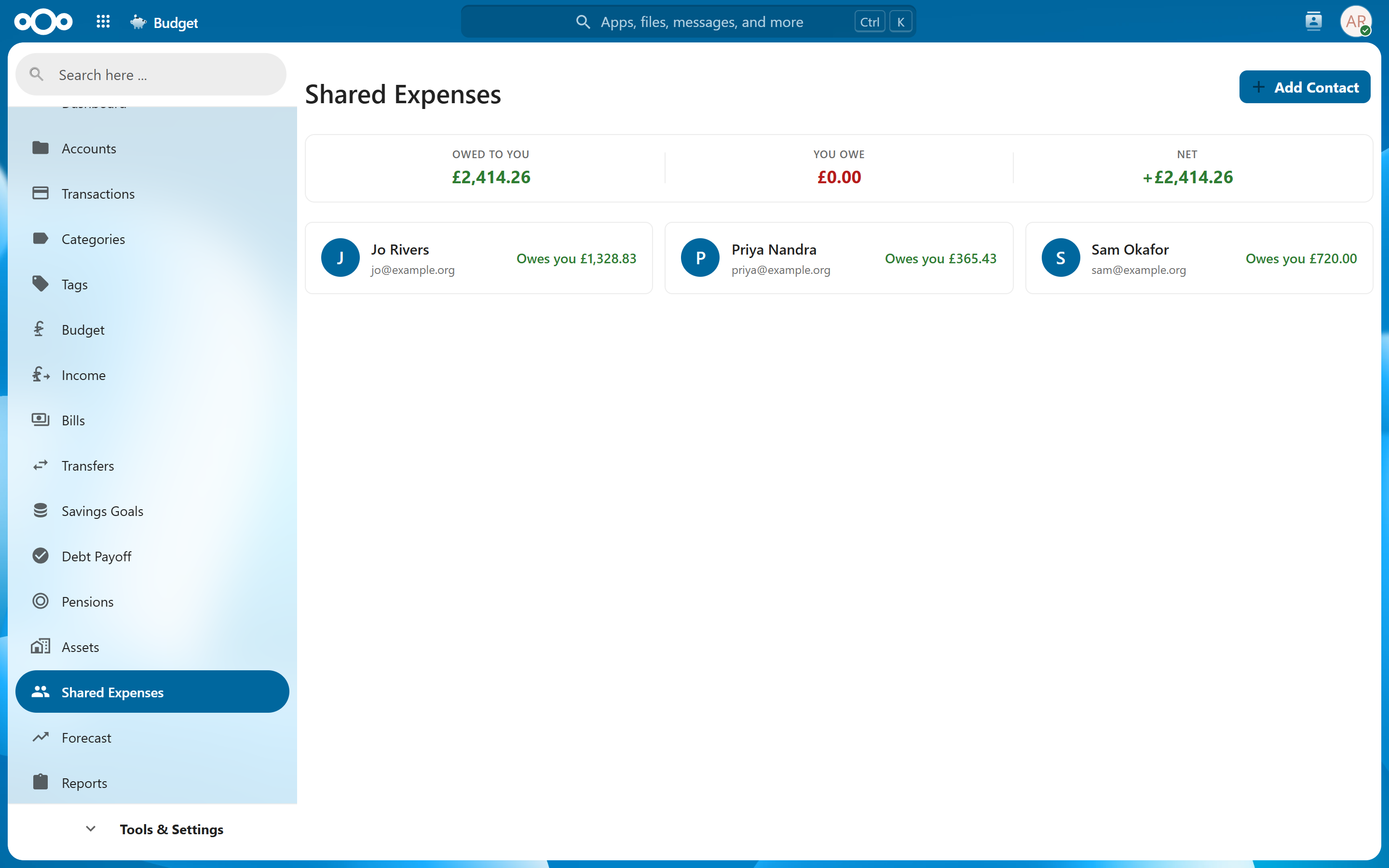
Overview#
Shared Expenses keeps a running balance between you and each person you share costs with. You split a transaction in one of your accounts between yourself and any of your contacts, equally, by percentage or by amount, and the balance with each of them updates. When they pay you back, you settle those splits and the balance comes down.
Every split belongs to a transaction. The full amount you paid is recorded once, in your account, and the split only records the part someone else owes, so your spending figures are not counted twice.
Adding Contacts#
Before splitting anything, add the people you share with:
- Navigate to Shared Expenses
- Click Add Contact
- Choose how to add them:
- Nextcloud User -- Select someone from the dropdown of users on your Nextcloud instance. Their display name is filled in for you.
- Manual -- Leave the dropdown on None and enter a name, plus an email address if you want one for reference.
- Click Save
| Field | Required | Description |
|---|---|---|
| Nextcloud User | No | Links the contact to a user on your Nextcloud instance |
| Name | Yes | Display name for the contact |
| No | Email address for reference |
Tip: Link a contact to their Nextcloud account where you can. It lets them see what you have split with them, and lets their splits with you count towards your balance with them (see Shared With Me). Use manual contacts for anyone outside your Nextcloud instance.
To edit or delete a contact, hover over their card on the Shared Expenses page and use the buttons that appear. Deleting a contact also deletes every split and settlement you have recorded with them.
Splitting a Transaction#
A split is made from the transaction itself:
- Navigate to Transactions
- Click More actions (⋮) on the transaction's row, then Share expense (the icon with two people)
- Under Split between, tick everyone the transaction is shared with. Your own row is ticked already, for your share.
- Choose a Split Method:
- Equally -- The amount is divided evenly between everyone ticked. A penny that will not divide evenly stays with you.
- By percentage -- Enter a percentage for each person, yourself included, adding up to 100%. The percentages start spread evenly, and stay as you set them once you type one.
- By amount -- Enter what each person owes. Your share is whatever is left over.
- Check the amount shown beside each name and the total underneath, add a note if you want one, then click Save Split
For money going out, the people ticked owe you their share. For money coming in, such as a refund you received on everyone's behalf, you owe them theirs.
For example, a £900 invoice split By percentage with you at 50%, Alice at 30% and Bob at 20% leaves Alice owing you £270 and Bob £180, and your own share is £450.
Tip: If you paid for something entirely on other people's behalf, untick your own row and the whole amount is split between them. By amount always leaves you whatever the others do not owe, so there your row stays ticked.
The transaction then carries a Shared badge in the transaction list, which changes to Settled once every split on it has been settled.
A split takes the currency of the account the transaction is in, and balances are kept separately for each currency.
Changing or Removing a Split#
Use Share expense again on the same transaction. The dialog opens on the splits already saved, shown as amounts, and you can change them, tick someone else, or untick a person to take them out of the split. Unticking everyone and saving removes the split altogether, after asking you to confirm.
A split that has been settled is shown but locked, as it belongs to a recorded settlement. What it covered is left out of what there is to split: on a £90 bill with £30 already settled with one person, the dialog divides the remaining £60.
Deleting a transaction also deletes its splits.
Viewing Balances#
The bar at the top of the Shared Expenses page shows your totals across everyone:
- Owed to you -- what contacts owe you
- You owe -- what you owe contacts
- Net -- the difference between the two
Each contact's card shows where you stand with them: Owes you, You owe or Settled. If you have split in more than one currency, each currency is shown on its own line.
Click a contact's card to open their details. The Shared Expenses tab lists every split between you, with its date, description, amount and whether it is still open or settled. The Settlement History tab lists every settlement.
Tip: Balances are net amounts. If you owe someone for dinner but they owe you for groceries, their card shows only the difference.
Shared With Me#
If a contact is linked to a Nextcloud user on the same instance, expenses shared with you appear in the Shared with me section of the Shared Expenses view. This gives recipients visibility into what others have recorded against them — who paid, the total, your share, and whether it has been settled — without needing access to the other person's accounts.
They also count towards your balance with that person, as long as you have a contact of your own linked to their Nextcloud account. Their split is shown from your side, so an expense they record as "owes you £40" shows on your contact for them as "You owe £40", and where you have both split expenses with each other the balance is what is left once one is taken off the other. Clicking the contact lists their splits alongside yours, marked split by with their name, and the payments they record appear in the settlement history as payments from you.
Only the person who split an expense can settle it. Settle All and Record Payment only reach the expenses you split yourself, and are greyed out when none of yours are open.
Settling Up#
When money changes hands, settle the splits it covers. Click the contact's card to open their details, then use one of:
- Settle All -- Marks every open split with that contact as settled and records one settlement for the total, dated today.
- Record Payment -- Opens a list of the open splits, all ticked. Untick any that have not been paid, set the date and add a note if you want one, then click Settle Selected. The total updates as you tick and untick.
Settling works split by split, so to record a part payment, settle only the splits it covers. If the splits you settle are in more than one currency, one settlement is recorded for each currency.
Note: Settling does not add a transaction to any of your accounts. Record the money arriving or leaving as you normally would, by importing a statement or adding the transaction.
Related Features#
- Transactions -- Splits are made from the transaction list
- Sharing -- Give other Nextcloud users access to your accounts and categories, which is separate from splitting costs with them
- Accounts -- The amount you paid stays in your account, and each split takes its currency from it
Settings#
There are no dedicated settings for shared expenses. Contacts, splits and settlements are managed from the Shared Expenses page and the transaction list.