 Budget
Bills
Bills track your recurring payments — rent, utilities, subscriptions, loan repayments, and more. The app reminds you when payments are due, automatically advances due dates after each payment, and can even auto-pay bills by creating transactions on their due date.
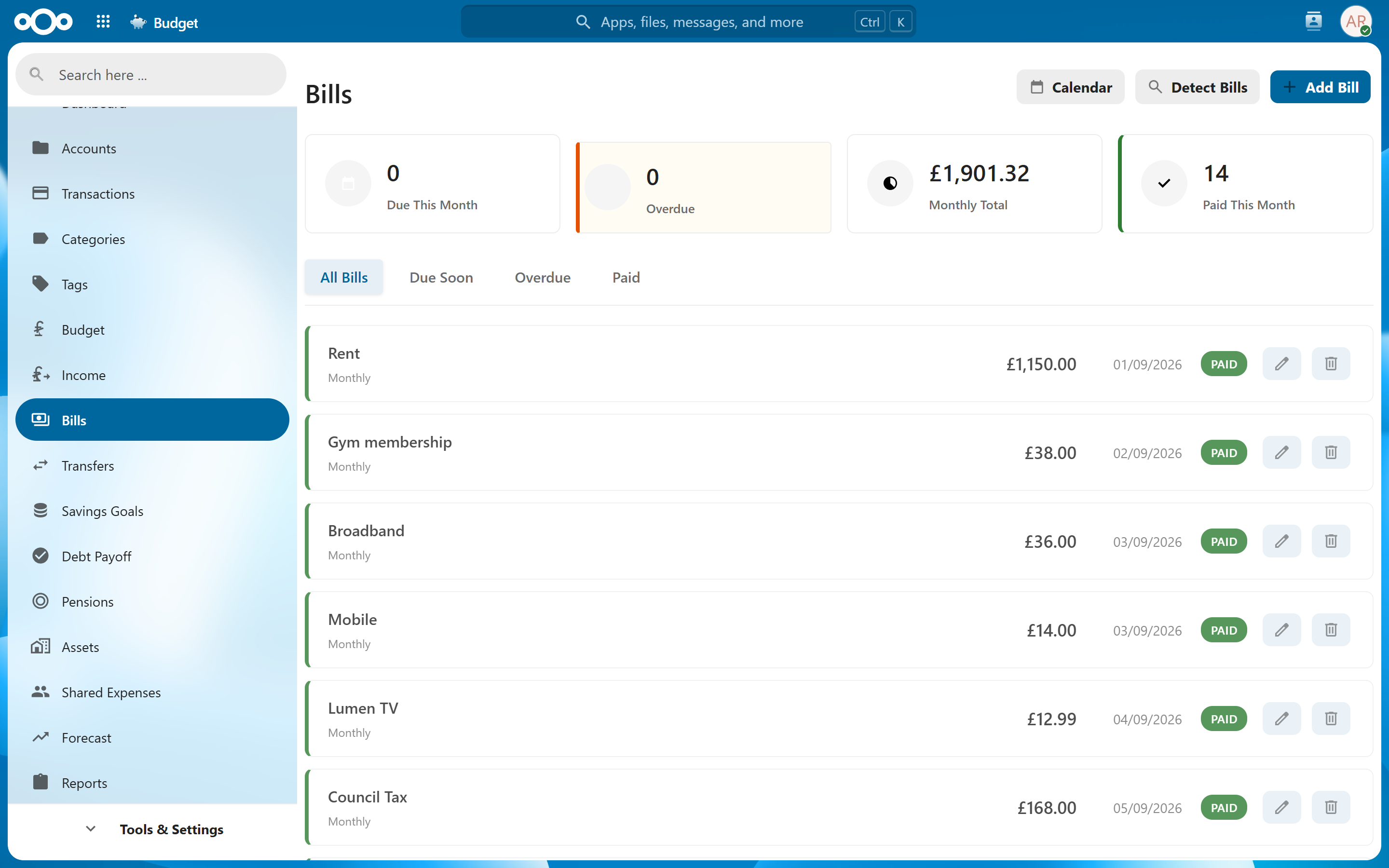
Adding a Bill#
Navigate to Bills > Add Bill to create a new bill.
| Field | Description |
|---|---|
| Name | A descriptive name for the bill (e.g., "Electric Bill", "Netflix", "Mortgage"). |
| Amount | The expected payment amount. For variable bills, enter your typical or average payment. |
| Frequency | How often the bill recurs. See Frequency Options below. |
| Due Day | The day of the month (or week) the payment is due. |
| Start Date | Optional. The bill only occurs on or after this date — useful when a recurring cost changes mid-year: end one bill and start its replacement at a specific date. |
| Category | The spending category to assign when marking paid. |
| Account | The account the payment comes from. Required for auto-pay, and needed for "Mark Paid" to record a transaction. |
| Auto-Detect Pattern | A text pattern to match imported transactions against this bill (e.g., "NETFLIX" or "ELECTRIC CO"). When an import or bank sync brings in a matching transaction (amount within 10%, dated near the due date), the bill is automatically marked as paid with that transaction linked — no duplicate money movement, and the Bills Calendar ticks the month off. |
| Exclude from Forecast | Marks the bill as extraordinary: transactions it generates are left out of forecast projections (they still affect your balance). |
| Create future transaction | On by default. Keeps a scheduled placeholder transaction for the bill's next due date, so upcoming payments appear in the transaction list and forecasts. Untick to opt this bill out — no placeholders are ever created for it, including after marking it paid. Toggling it on a saved bill takes effect immediately (the pending placeholder is created or removed). |
| Notes | Optional free-text notes about the bill. |
Tip: Setting an auto-detect pattern helps the app automatically recognize bill payments when you import bank statements, saving you from manually marking each one as paid.
Frequency Options#
| Frequency | Description |
|---|---|
| Weekly | Every 7 days on the same weekday. |
| Biweekly | Every 14 days (every other week). |
| Monthly | Once per calendar month on the due day. |
| Quarterly | Every 3 months. |
| Semi-Annually | Every 6 months. |
| Yearly | Once per year. |
| One-Time | A single payment with no recurrence. See One-Time Bills. |
| Custom | Select specific months of the year when the bill is due. Useful for bills like property tax or insurance that occur on an irregular schedule. |
One-Time Bills#
One-time bills represent a single expected payment — for example, an annual registration fee or a final installment. For a one-time bill the schedule fields give way to a single Due Date, and that date is taken literally: it can be in the past, so an invoice you are entering late stays due on its own date (and shows as overdue) instead of being rolled forward to next year. After you mark a one-time bill as paid, it automatically deactivates itself and stops generating reminders. It stays visible in the bills list (shown as Paid) while its payment can still be reverted, so Mark Unpaid remains reachable — see Marking Bills as Unpaid.
Note: If you need to reactivate a one-time bill without reverting its payment, edit it and change the status back to active.
Auto-Pay#
Auto-pay removes the need to manually mark a bill as paid each period. When enabled, the app automatically creates a cleared transaction in the linked account on the bill's due date via a background job.
How to Enable#
- Edit the bill and toggle Auto-Pay on.
- Ensure the bill has an Account set — auto-pay requires a linked account to create the transaction.
How It Works#
- A background job runs daily and checks for bills with auto-pay enabled that are due today.
- When triggered, it creates a transaction in the linked account for the bill's amount and category.
- The bill's due date advances to the next occurrence automatically.
- Bills with auto-pay show an Auto-pay badge in the bills list.
When Auto-Pay Fails#
If the background job encounters an error (e.g., the linked account was deleted), the bill displays a warning badge and auto-pay is disabled. You will need to fix the issue and re-enable auto-pay manually.
Tip: Auto-pay works best for fixed-amount bills like subscriptions or loan payments. For variable bills like electricity, consider marking them paid manually after confirming the amount.
Marking Bills as Paid#
Click Mark Paid on any bill to record the payment. This:
- Creates a cleared transaction in the linked account for the bill amount and category, dated today.
- Advances the due date to the next occurrence based on the frequency.
- Pre-creates a scheduled transaction for the next occurrence, so the upcoming payment is visible in the transaction list and forecasts (unless the bill's Create future transaction option is unticked).
- Shows an Undo notification for a few seconds, allowing you to reverse the action immediately — and even after the notification is gone, the payment can still be reverted with Mark Unpaid (see Marking Bills as Unpaid).
Note: The pre-created transaction for the next occurrence is a placeholder, not a second payment. It carries a Scheduled badge, is shown in italics, and is not counted toward your current balance or the transaction list total until it is due. When you mark the next occurrence paid, this placeholder becomes the real payment — it is not duplicated. See Transaction Status for details. If you prefer not to see these placeholders at all, untick Create future transaction on the bill.
Marking a bill paid after its due date works the same way: the payment transaction is dated the day you mark it paid, and the due date still advances from the original schedule (a bill due on the 1st stays due on the 1st of the next month, even if you paid on the 2nd).
When the payment is already in your register#
If transactions that plausibly match the bill (by amount or name, near the due date) already exist — for example from a bank import — an Existing Transaction Found dialog appears before anything is created. Choose link to attach the existing transaction to the bill (nothing is recorded twice), or Create a new transaction instead if none of the candidates is the actual payment. The dialog also offers "Don't create any transaction (just mark as paid)" — use this only when the payment genuinely should not appear in this account's register, because your tracked balance will not reflect the payment and will drift from your bank.
Whichever option you pick, the bill is marked paid and moves on to its next due date. The choice is only about this payment: whether a placeholder is pre-created for the next occurrence is decided by the bill's own Create future transaction setting, exactly as when you skip an occurrence. If you import your transactions and link or skip on most bills, you will still see the upcoming occurrence in the transaction list and forecasts — that is the placeholder for next time, not a bill left unpaid.
Important: If the bill has no account assigned (or the transaction cannot be created), the bill is still marked paid but no money movement is recorded — your account balance will not reflect the payment. The app shows a clear warning when this happens. Assign an account to the bill, or add the transaction manually, so your tracked balance stays in step with your bank.
Marking Bills as Unpaid#
Marked a bill paid by mistake? Every payment records what it changed, so the most recent one can be reverted properly at any time — not just while the Undo notification is showing. Click Mark Unpaid on the bill and confirm. This:
- Deletes the transactions the payment created (and the matching transaction on the destination account for transfers). A payment that was linked to an imported transaction unlinks it instead — money that genuinely left your bank is never deleted. If you already deleted a payment transaction yourself, the revert carries on without complaint.
- Rolls the due date back to what it was before the payment — a bill that advanced to next month comes back to this month.
- Reactivates a one-time bill, so it returns to your active bills instead of staying vanished.
- Restores the exact amount for statement-balance and other dynamic-amount bills. These amounts are read from the card's ledger at payment time and cannot be recomputed later, so the recorded value is put back as it was.
- Restores the remaining-payments counter where the bill uses one.
Auto-paid bills and bills matched from an import can be reverted the same way — useful when auto-pay fired for a payment that didn't actually happen. If auto-pay is still on, the confirmation reminds you that it may pay the bill again on its next run, so disable auto-pay first if the payment should not recur. Recurring transfers have the same Mark Unpaid action in the Transfers view.
Note: Only the most recent payment of a bill can be reverted, and the stored revert is discarded when you edit the bill's amount, schedule, or accounts — reverting after such an edit would restore values from before your change. Marking the bill paid again replaces the stored revert, and deleting a payment transaction by hand does not unmark the bill — use Mark Unpaid so the due date and bill state roll back together.
Payments without a recorded transaction#
If any bill was marked paid in the last 60 days without a transaction being created or linked, a warning card appears at the top of the Bills page listing those payments. Your account balance does not reflect them, so it will drift from your real bank balance until they are recorded. Click Record transaction on an entry to book the missing payment — it is dated the day the bill was marked paid, linked to the bill, and created on both accounts for transfers. Payments skipped with the Skip button are not flagged (skipping is explicitly "no money moved").
Skipping a Payment#
Click Skip to advance the due date to the next occurrence without creating a transaction. This is useful when a payment is waived, already handled outside the app, or you simply want to skip a period.
Note: Skipping does not create any transaction — it only moves the due date forward.
Bill Notifications#
Set a reminder to be notified a specified number of days before a bill is due. Reminders use the Nextcloud notification system, so they appear in your Nextcloud notification bell and can also be sent as push notifications if you have the Nextcloud mobile app configured.
To configure a reminder, edit the bill and set the Remind field to the number of days before the due date you want to be notified (e.g., 3 days before).
Bills Calendar#
The Bills Calendar provides an annual overview of your bills — what has been paid, and what is still to come. Access it from Reports > Bills Calendar.
Each bill's row combines two things: the months its schedule says it is due, and the payments actually recorded against it (the transactions created or linked when you marked it paid). A month with a payment is shown as paid and carries the amount you actually paid; a month still to come shows the expected amount. A payment made a few days late — due on the 30th, paid on the 2nd — counts for the month it was due, not the month it was made, and a payment with no scheduled month near it appears as an extra paid month rather than being dropped. A one-time bill that has already been paid stays in the calendar for the year it was paid in, even though paying it deactivated it, and one-time bills that share a name (several invoices from the same vendor) are shown as one row with a cell per invoice. A month is never shown as paid while the bill itself still lists that occurrence as due: paying a bill moves its next due date on a cycle, and the calendar only marks occurrences before that date. A month the bill has moved past without a recorded payment — one you marked paid choosing Don't create any transaction, or skipped — is struck through with a dashed line, and its tooltip says no payment was recorded: it is not owed, but nothing was booked for it either. Nothing is drawn for months before a bill was created, unless its start date says the schedule began earlier, and a bill with nothing in the year is left out of the table; a payment linked from before then still shows as a paid month.
Views#
- Heatmap — A color-coded calendar grid showing bill density by month. Darker cells indicate higher total amounts.
- Table — A detailed table listing each bill and its months, with paid months shown in
strikethrough. Hover a cell for Paid or Due. Includes a monthly totals row at the bottom, built from the paid amounts where there are payments and the expected amounts otherwise.
Filters#
| Filter | Options |
|---|---|
| Status | Active, Inactive, or All bills. |
| Account | Filter to bills linked to a specific account. |
| Include Transfers | Toggle whether inter-account transfers are shown. |
Tip: The Bills Calendar is especially useful at the start of the year for understanding your fixed monthly obligations and planning cash flow.
Calendar Feed Subscription#
Bills can also appear in your real calendar — Nextcloud Calendar, your phone, Thunderbird — via a token-authenticated ICS subscription. Click Calendar feed in the Bills view to get your subscription URL. See Nextcloud Integration for details and security notes.
Split Templates#
For bills that should be divided across multiple categories (e.g., a utility bill split between electricity and water), you can define a split template. When the bill is marked as paid, the resulting transaction is automatically split according to the template's category allocations.
To set up a split template, edit the bill and configure the split categories and their amounts or percentages.
End Date and Remaining Payments#
You can optionally limit a bill's lifespan:
- End Date — The bill automatically deactivates after this date, even if it has remaining occurrences.
- Remaining Payments — Set a specific number of payments remaining. The count decreases each time the bill is marked paid, and the bill deactivates when it reaches zero.
These options are useful for installment plans, fixed-term subscriptions, or any payment with a known end point.
Related Features#
- Transactions — Each paid bill creates a transaction in the linked account.
- Forecast — Active bills are factored into balance forecasting.
- Dashboard — The Upcoming Bills tile shows bills due soon.
- Reports — The Bills Calendar provides annual bill overviews.
- Accounts — Bills are linked to accounts for payment tracking.
- Nextcloud Integration — Subscribe to bills as a calendar feed; see upcoming bills on the Nextcloud dashboard.
- The Bills view also proactively suggests recurring payments that aren't tracked yet — create them in one click or dismiss permanently.
Settings#
Bills do not have dedicated settings. Reminder notifications are delivered through the Nextcloud notification system and respect your Nextcloud notification preferences.