 Budget
Categories
Categories organize your transactions into a hierarchical tree of expense and income types. Each transaction is assigned to a category so you can track where your money goes and where it comes from.
Overview#
Categories are the foundation of budgeting in the Budget app. Every transaction belongs to a category, and categories are divided into two types:
- Expense categories -- money going out (groceries, rent, entertainment)
- Income categories -- money coming in (salary, freelance, dividends)
Categories can be nested to any depth, letting you organize spending as broadly or granularly as you need. For example, you might have a top-level Food category with children Groceries, Restaurants, and Coffee.
Creating Categories#
To create a new category:
- Navigate to Categories
- Click Add Category
- Fill in the details:
| Field | Required | Description |
|---|---|---|
| Name | Yes | Display name for the category |
| Type | Yes | Expense or Income |
| Parent | No | Place this category under an existing one |
| Icon | No | Emoji or icon to visually identify the category |
| Color | No | Color used in charts and reports. A new category starts on a colour none of your other categories use yet |
| Exclude from reports | No | Leave this category out of reports, budgets and dashboard totals entirely |
| Exclude from budgeting | No | Keep the category everywhere except the budget surfaces -- see Excluding a category |
The dialog puts the naming fields under Details on the left and the two exclusion options under Options on the right, with everything visible at once. On a saved category, Tag Sets spans the full width below both columns. The columns stack into one on narrow windows and phones.
Tip: Assign distinct colors to your top-level categories. Child categories inherit their parent's color in charts, so setting colors at the top level keeps your reports visually consistent.
Giving several categories new colours#
A new category takes the next colour from a palette of 32, choosing one none of your categories use yet, so the colour picker is only needed when you want something specific. Once all 32 are in use the colour used least often is picked next.
To give existing categories a colour each in one go, which is worth doing if they were all created before this and are all the same blue:
- Tick the categories in the tree, or tick one and click Select All
- Click Recolor in the bar above the tree
- Confirm, as the colours those categories have now are replaced
Each ticked category is given a different colour, avoiding the ones the categories you did not tick are using. Categories shared with you have no tick box, so they keep their owner's colours.
Category Hierarchy#
Categories support unlimited nesting depth. Child categories roll up into their parent for reporting purposes -- when you view spending on Food, you see the combined total of Groceries, Restaurants, and any other children.
Common hierarchy patterns:
Housing
  Rent / Mortgage
  Utilities
  Insurance
  Maintenance

Food
  Groceries
  Restaurants
  Coffee

Transportation
  Fuel
  Public Transit
  Parking
Note: A category's type (expense or income) is determined by its top-level ancestor. All children under an expense category are expense categories; the same applies for income.
Drag-and-Drop Reordering#
You can reorder categories by dragging them within the category tree:
- Reorder within the same level -- Drag a category up or down among its siblings to change the display order
- Move to a different parent -- Drag a category onto another category to make it a child of that category
- Promote to top level -- Drag a child category to the root level to make it a top-level category
Changes are saved automatically as you drop.
Default Categories#
When you first set up the Budget app, the Setup Wizard offers to create a default set of categories based on the 50/30/20 budgeting rule:
Needs (50%)
- Housing
- Food
- Transportation
- Healthcare
- Subscriptions
Wants (30%)
- Entertainment
- Shopping
- Personal
Savings (20%)
- Savings
Income
- Salary
- Freelance
- Investments
- Other Income
Tip: The defaults are a starting point. Rename, reorganize, or delete them to match your actual spending patterns. You can always create new categories later.
Importing and Exporting Categories#
A whole category tree can be moved in and out of Budget as a file, so a carefully built structure can be backed up, shared with someone else, or drafted elsewhere — in a spreadsheet, or by asking an AI assistant for "a category tree for a family with two cars and a mortgage" — and loaded in one go. The Export and Import buttons sit next to Add Category on the Categories page.
Export downloads your own categories (shared ones belong to their owner and are not included) as a JSON file with the nesting, types, colours, icons and budgets. Ids and dates are left out, so the file is readable and can be imported into any account.
Import accepts that JSON file or a CSV, and always shows a preview first: every category in the file, marked New or Exists, plus any warnings about things that had to be guessed. Nothing is written until you confirm. Categories that already exist at the same level (same parent, type and name, ignoring case) are left exactly as they are; anything missing is created underneath them. Importing the same file twice therefore changes nothing the second time.
JSON format#
{
  "categories": [
    {
      "name": "Food",
      "type": "expense",
      "color": "#f97316",
      "budgetAmount": 400,
      "children": [
        { "name": "Groceries" },
        { "name": "Eating Out", "budgetAmount": 120 },
        "Snacks"
      ]
    },
    { "name": "Income", "type": "income", "children": ["Salary", "Freelance"] }
  ]
}
nameis required.typeisincomeorexpenseand is needed on top-level categories only — children always take their parent's type.- Optional:
icon,color(hex),budgetAmount,budgetPeriod(monthly,weekly,quarterly,yearly),excludedFromReports,excludedFromBudget,budgetRollover. childrenholds subcategories; a plain string is shorthand for a category with only a name. A bare list of categories without thecategorieswrapper works too.
CSV format#
path,type,budgetAmount,color
Food,expense,400,#f97316
Food > Groceries,,,
Food > Eating Out,,120,
Income,income,,
Income > Salary,,,
- One row per category.
pathgives the full position with>between levels; parents that have no row of their own are created from the path. Aparentcolumn (a name or a path) plus anamecolumn works as well. - Other columns are optional and match the JSON fields:
type,icon,color,budget,period,excluded_from_reports,excluded_from_budget. Column names are matched loosely (Budget Amount,colourandbudget_amountare all fine). - Commas, semicolons and tabs are all accepted as the separator. A file with no header row is read as
path,type.
A top-level category without a type is imported as an expense category, and the preview says so.
Category Details#
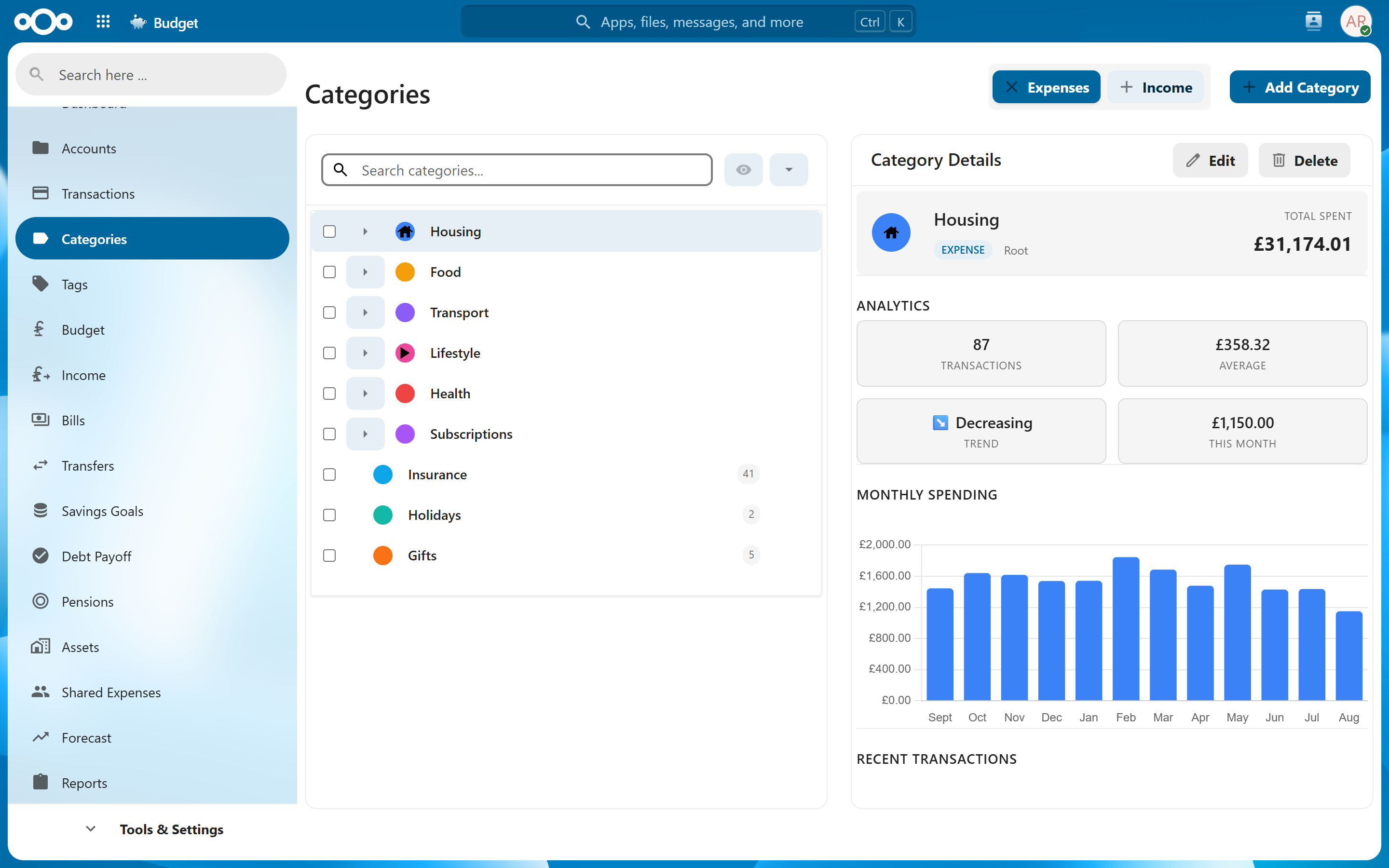
Click any category to open its detail view, which shows:
- Total spending -- Lifetime total for this category
- Average -- Average monthly spending
- This month -- Spending in the current budget month
- Trend -- Whether spending is increasing, decreasing, or stable compared to recent months
- Monthly spending chart -- A bar chart showing spending over time
- Recent transactions -- The five most recent transactions counted here. View All Transactions opens the full list, filtered to this category.
The months here are budget months. With a Budget start day set in Settings, each bar and This month cover a whole budget period, listed under the same month as on the Budget page.
Every figure here covers the category and all of its subcategories, minus any branch you have excluded from reports.
Split transactions count too, at the share that belongs to this category. A split is listed once, at its share, with the whole transaction named underneath, so a category funded entirely out of splits reports the same figure here as it does on the Budget page and in your reports.
This view helps you quickly understand your spending patterns for any category without navigating to the full reports.
Excluding a Category#
Two checkboxes on a category control how far it reaches. Both are set when you create or edit a category, and both apply to the category and all of its subcategories.
| Option | What it does |
|---|---|
| Exclude from reports | The category disappears from spending reports, dashboard totals, insights and budgets. Use it for money that shouldn't count as spending at all -- internal transfers, reimbursements you're only passing through, or a category you keep purely for record-keeping. |
| Exclude from budgeting | The category keeps counting in reports, the dashboard and every total. It only drops out of the budget surfaces: the Budget page, budget alerts, the budget vs. actual report and envelope rollover. |
Exclude from budgeting is for spending you want to see but never budget against -- irregular one-offs, a "Gifts" category that swings wildly month to month, or anything you'd rather not have skewing a budget you can't realistically set. The transactions still show up in reports and totals exactly as before; you just stop being told you're over budget on something you never budgeted.
Note: Excluding a parent excludes its whole subtree. If you want to budget a child of an excluded parent, put that child somewhere else in the tree.
Both options are owner-only on a shared category: a recipient with Edit permission can rename it and change its colour, but cannot change what it counts toward for its owner.
Shared Categories#
If another user shares categories with you, they appear in your category tree with a badge naming the owner:
- "Shared · <owner>" -- read-only. You can classify transactions with it but cannot change the category itself.
- "Shared (editable) · <owner>" -- shared with Edit permission. You can rename it and change its colour.
A shared category's type, parent, budget, report visibility and deletion always remain with its owner. See Sharing for the full details.
Deleting Categories#
To delete a category, open it and click Delete.
Warning: You cannot delete a category that has transactions assigned to it. Reassign or delete those transactions first, then delete the category.
When you delete a parent category, all of its child categories are also deleted (cascade delete). Make sure none of the children have transactions assigned before deleting a parent.
Tip: If you want to stop using a category without deleting it, consider moving it under a "Retired" parent category instead. This preserves your historical data while keeping your active category list clean.
Transaction Counts#
Each category in the tree displays a count of how many transactions are assigned to it. This count includes only direct transactions -- it does not roll up transactions from child categories.
The count helps you quickly identify:
- Categories that are heavily used and might benefit from being split into subcategories
- Categories with zero transactions that could be cleaned up or removed
Related Features#
- Budget -- Set monthly spending targets for each category
- Tags -- Add additional classification dimensions to categories with tag sets
- Transactions -- Assign categories to individual transactions
- Import Rules -- Automatically categorize imported transactions based on patterns
Settings#
There are no dedicated settings for categories. Category behavior is managed directly through the category tree interface.